> ## Documentation Index
> Fetch the complete documentation index at: https://docs.usenash.com/llms.txt
> Use this file to discover all available pages before exploring further.
# Notifications
> Nash's built-in notifications platform alerts customers and internal teams on delivery events across SMS, email, WhatsApp, Slack, and webhook — with reusable audiences, fine-grained targeting, and customizable messages.
Nash has a built-in, customizable notifications platform that lets you own the end-to-end customer experience and keep internal teams up to speed on delivery events. Every notification separates the **event and message** from the **audience**, so you can send the same update to different audiences — or different messages on the same event — without rebuilding anything. Whether a job (delivery) reaches a new status, a driver runs late, or an order needs attention, you decide who hears about it and how.
## How it works
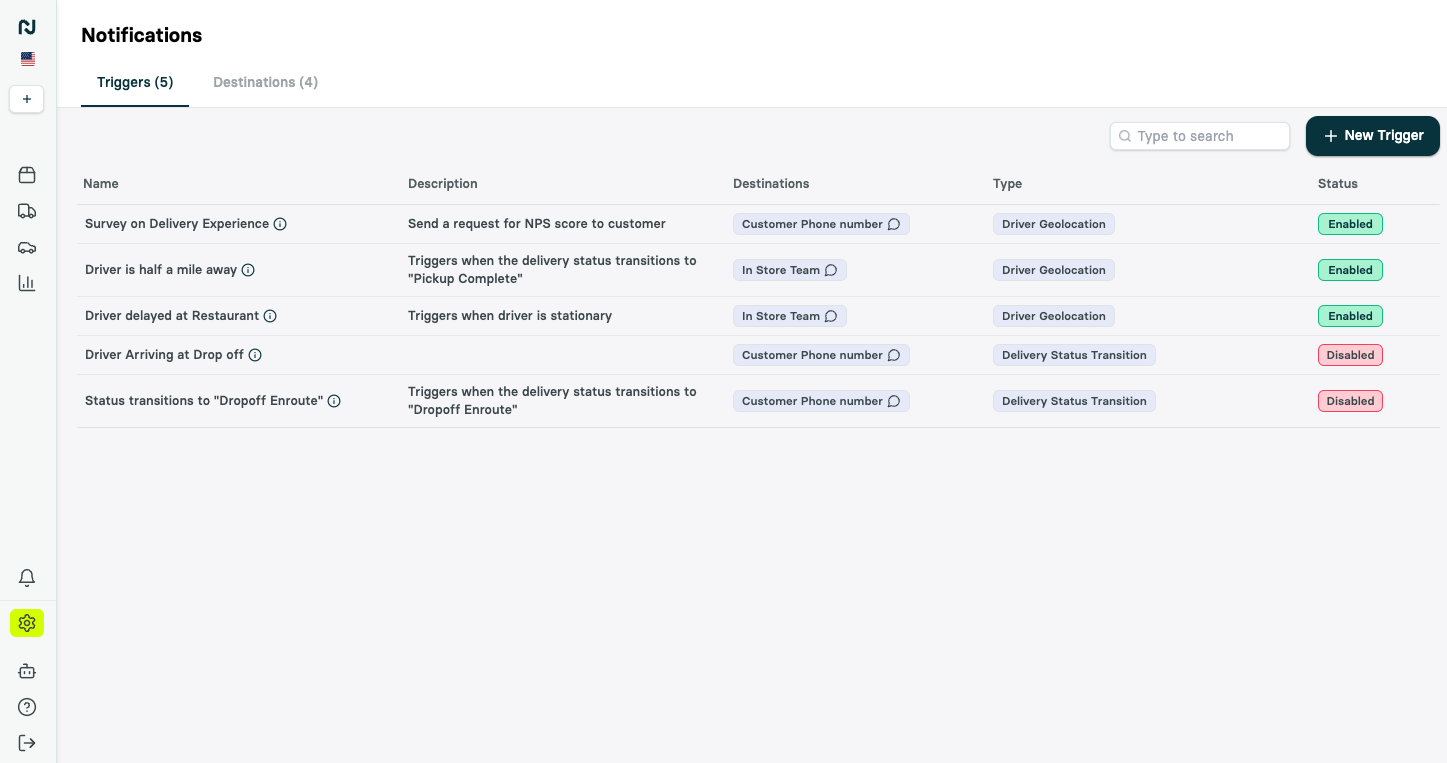
You manage notifications under **Settings > Notifications** in the Portal, built from three pieces:
* **Triggers** define *when* a notification fires and *what* it says — an event (a status change, a delay, a failed dispatch) paired with a message.
* **Destinations** define *who* receives it and *where* — a reusable audience on one or more channels.
* **Settings** control how messages are sent, including sending SMS from your own number.
Because the event and message live on the trigger and the audience lives on the destination, one event can notify several audiences at once, and one audience can be reused across many events — no duplicated work.
 ## Channels
Notifications can be delivered across multiple channels:
A single destination can mix channels. Triggers can also hand off to [Nash Agent](/nash-agent/custom-agents) — starting a custom agent to investigate and resolve an issue, or pushing an alert to your team.
## Events you can notify on
Nash ships a broad catalog of triggers, grouped by what they watch:
* **Delivery** — a delivery reaching a new status (*Pickup Complete*, *Dropoff Enroute*, *Dropoff Complete*), incident reports, task reassignments, a failed auto-dispatch or cancellation, delivery attempts exhausted, a proof-of-delivery photo uploaded, and more.
* **Driver** — a driver's distance or time from pickup or dropoff, entering or leaving a [zone](/reference/zones), a location that doesn't match the reported status, and pickup or dropoff ETAs running late.
* **Status** — a delivery stuck in one status too long, statuses changing faster than expected, and live-monitoring health changes.
* **Order** — an order that needs attention, is ready to fulfill, hasn't dispatched as pickup nears, or has an address that won't validate, plus optimization outcomes and an event you fire yourself from the API.
* **Refund** — refund requests as they move through review.
By default, your account includes customer-facing SMS notifications on key status transitions — *Pickup Complete*, *Dropoff Enroute*, and *Dropoff Complete* — plus internal notifications such as *Delivery Booked* and *Task Reassigned* that are disabled by default.
For the complete catalog of triggers and the events behind them, see the [notifications catalog](/api-reference/notifications/notifications).
## Customer notifications and the tracking page
Customer messages typically include a **tracking link** (`{{job_tracking_link}}`) that opens Nash's live-tracking page, where the customer sees the courier's position on a map and real-time status updates. You can embed that same live-tracking experience directly in your own web or mobile app — see [Embedding the Nash live-tracking experience](/reference/nash-embedding).
## Destinations: choose who hears it
A **destination** is a reusable group of recipients. Build as many as you need, mix channels within one, and point any number of triggers at it. Recipients can be:
* **Static** — a specific email address, phone number, Slack channel, or webhook URL.
* **Dynamic** — a variable resolved per delivery, such as `{{customer.phone_number}}` to text the recipient or `{{provider.slack_channel}}` to post in the assigned provider's channel.
Because the message lives on the trigger and the audience on the destination, you can tailor the same event per audience — a detailed Slack message for your ops team and a friendly SMS for the customer. Give each destination its own message override and, for email, its own subject line. You can also limit a trigger to fire **once per job** for a destination, so a chatty event doesn't text a customer over and over.
## Target the right deliveries
Not every trigger should fire on every delivery. Each trigger has an **Advanced** section to narrow when it runs:
* **Dispatch strategies** — only deliveries that use selected [dispatch strategies](/reference/dispatch-strategies).
* **Contracts** — only deliveries on selected contracts.
* **Conditions** — only deliveries whose metadata matches conditions you define, combined with AND/OR. Operators include *equals*, *does not equal*, *greater than*, *less than*, *contains*, *starts with*, and *ends with* — for example, fire only when `priority` equals `high`.
## Flag deliveries for live ops
A trigger can do more than send a message — it can **flag** the delivery so your team works it from the Flagged view in the Portal, turning passive alerts into a live queue. For triggers that watch an ongoing condition — a stuck status, a late pickup, or a late dropoff — enable **auto-resolve** to clear the flag automatically once the delivery recovers, so the queue only shows problems that are still live.
## Customize your messages
Every message supports **dynamic variables** so it reflects the specific delivery. Variables span the customer, pickup, dropoff, job, order, and delivery-provider context — for example `{{customer.first_name}}`, `{{pickup_business_name}}`, `{{dropoff_eta}}`, `{{job_tracking_link}}`, and `{{driver.name}}`. The [notifications catalog](/api-reference/notifications/notifications) lists every variable, and Nash adds to it regularly.
By default Nash sends SMS from its own messaging service. Your organization can instead send from its own Twilio account and sender identity, so texts arrive from a number your customers recognize — available on the **Settings** tab under Settings > Notifications.
A trigger can also add a **custom event** to the delivery's timeline when it fires — useful for tracking, or to start a [workflow](/reference/workflows).
For richer customer-facing customization — re-skinning the live-tracking page or embedding only selected widgets — see the advanced options in [Embedding the Nash live-tracking experience](/reference/nash-embedding).
## Track what Nash sent
Open any delivery in the Portal and select the **Notifications** view on its timeline to see every message Nash sent for that job — the trigger, the message, where it went, and when — along with any replies that came back. It's the fastest way to confirm a customer was notified.
## Deny list
The **deny list** is how you suppress notifications for a specific contact who has opted out of communications. Each entry records a **type** of communication and the **value** for that type — for example an email address or a phone number — giving you fine-grained, per-contact control over who Nash messages.
[Add a contact to the deny list](/api-reference/notifications/add-a-contact-to-the-deny-list) (`POST /v1/organization-management/notifications/deny-list`) opts a contact out. Provide the required `type` and `value`; that contact will no longer receive delivery notifications.
[Get contacts in the deny list](/api-reference/notifications/get-contacts-in-the-deny-list) (`GET /v1/organization-management/notifications/deny-list`) returns the suppressed contacts, with `page` / `pageSize` pagination.
[Remove a contact from the deny list](/api-reference/notifications/remove-a-contact-from-the-deny-list) (`DELETE /v1/organization-management/notifications/deny-list`) opts the contact back in so they resume receiving notifications.
The deny list operates at the organization level. Adding a contact suppresses Nash-sent notifications for that contact across deliveries, not just a single job.
## Next steps
Every trigger, channel, and dynamic message variable.
Suppress notifications for a contact.
Embed the Nash tracking page in your own app.
Drive automated actions when a trigger fires.
## Channels
Notifications can be delivered across multiple channels:
A single destination can mix channels. Triggers can also hand off to [Nash Agent](/nash-agent/custom-agents) — starting a custom agent to investigate and resolve an issue, or pushing an alert to your team.
## Events you can notify on
Nash ships a broad catalog of triggers, grouped by what they watch:
* **Delivery** — a delivery reaching a new status (*Pickup Complete*, *Dropoff Enroute*, *Dropoff Complete*), incident reports, task reassignments, a failed auto-dispatch or cancellation, delivery attempts exhausted, a proof-of-delivery photo uploaded, and more.
* **Driver** — a driver's distance or time from pickup or dropoff, entering or leaving a [zone](/reference/zones), a location that doesn't match the reported status, and pickup or dropoff ETAs running late.
* **Status** — a delivery stuck in one status too long, statuses changing faster than expected, and live-monitoring health changes.
* **Order** — an order that needs attention, is ready to fulfill, hasn't dispatched as pickup nears, or has an address that won't validate, plus optimization outcomes and an event you fire yourself from the API.
* **Refund** — refund requests as they move through review.
By default, your account includes customer-facing SMS notifications on key status transitions — *Pickup Complete*, *Dropoff Enroute*, and *Dropoff Complete* — plus internal notifications such as *Delivery Booked* and *Task Reassigned* that are disabled by default.
For the complete catalog of triggers and the events behind them, see the [notifications catalog](/api-reference/notifications/notifications).
## Customer notifications and the tracking page
Customer messages typically include a **tracking link** (`{{job_tracking_link}}`) that opens Nash's live-tracking page, where the customer sees the courier's position on a map and real-time status updates. You can embed that same live-tracking experience directly in your own web or mobile app — see [Embedding the Nash live-tracking experience](/reference/nash-embedding).
## Destinations: choose who hears it
A **destination** is a reusable group of recipients. Build as many as you need, mix channels within one, and point any number of triggers at it. Recipients can be:
* **Static** — a specific email address, phone number, Slack channel, or webhook URL.
* **Dynamic** — a variable resolved per delivery, such as `{{customer.phone_number}}` to text the recipient or `{{provider.slack_channel}}` to post in the assigned provider's channel.
Because the message lives on the trigger and the audience on the destination, you can tailor the same event per audience — a detailed Slack message for your ops team and a friendly SMS for the customer. Give each destination its own message override and, for email, its own subject line. You can also limit a trigger to fire **once per job** for a destination, so a chatty event doesn't text a customer over and over.
## Target the right deliveries
Not every trigger should fire on every delivery. Each trigger has an **Advanced** section to narrow when it runs:
* **Dispatch strategies** — only deliveries that use selected [dispatch strategies](/reference/dispatch-strategies).
* **Contracts** — only deliveries on selected contracts.
* **Conditions** — only deliveries whose metadata matches conditions you define, combined with AND/OR. Operators include *equals*, *does not equal*, *greater than*, *less than*, *contains*, *starts with*, and *ends with* — for example, fire only when `priority` equals `high`.
## Flag deliveries for live ops
A trigger can do more than send a message — it can **flag** the delivery so your team works it from the Flagged view in the Portal, turning passive alerts into a live queue. For triggers that watch an ongoing condition — a stuck status, a late pickup, or a late dropoff — enable **auto-resolve** to clear the flag automatically once the delivery recovers, so the queue only shows problems that are still live.
## Customize your messages
Every message supports **dynamic variables** so it reflects the specific delivery. Variables span the customer, pickup, dropoff, job, order, and delivery-provider context — for example `{{customer.first_name}}`, `{{pickup_business_name}}`, `{{dropoff_eta}}`, `{{job_tracking_link}}`, and `{{driver.name}}`. The [notifications catalog](/api-reference/notifications/notifications) lists every variable, and Nash adds to it regularly.
By default Nash sends SMS from its own messaging service. Your organization can instead send from its own Twilio account and sender identity, so texts arrive from a number your customers recognize — available on the **Settings** tab under Settings > Notifications.
A trigger can also add a **custom event** to the delivery's timeline when it fires — useful for tracking, or to start a [workflow](/reference/workflows).
For richer customer-facing customization — re-skinning the live-tracking page or embedding only selected widgets — see the advanced options in [Embedding the Nash live-tracking experience](/reference/nash-embedding).
## Track what Nash sent
Open any delivery in the Portal and select the **Notifications** view on its timeline to see every message Nash sent for that job — the trigger, the message, where it went, and when — along with any replies that came back. It's the fastest way to confirm a customer was notified.
## Deny list
The **deny list** is how you suppress notifications for a specific contact who has opted out of communications. Each entry records a **type** of communication and the **value** for that type — for example an email address or a phone number — giving you fine-grained, per-contact control over who Nash messages.
[Add a contact to the deny list](/api-reference/notifications/add-a-contact-to-the-deny-list) (`POST /v1/organization-management/notifications/deny-list`) opts a contact out. Provide the required `type` and `value`; that contact will no longer receive delivery notifications.
[Get contacts in the deny list](/api-reference/notifications/get-contacts-in-the-deny-list) (`GET /v1/organization-management/notifications/deny-list`) returns the suppressed contacts, with `page` / `pageSize` pagination.
[Remove a contact from the deny list](/api-reference/notifications/remove-a-contact-from-the-deny-list) (`DELETE /v1/organization-management/notifications/deny-list`) opts the contact back in so they resume receiving notifications.
The deny list operates at the organization level. Adding a contact suppresses Nash-sent notifications for that contact across deliveries, not just a single job.
## Next steps
Every trigger, channel, and dynamic message variable.
Suppress notifications for a contact.
Embed the Nash tracking page in your own app.
Drive automated actions when a trigger fires.